Google's stack: what's actually in it
There is one company whose AI you are almost certainly already paying for, and it is the same company whose AI you are probably not using. Google ships four or five assistants, two chat apps, a research tool, a coding agent, a browser feature and a side panel — and the honest reason most people only touch one of them is that nobody can say which one does what.
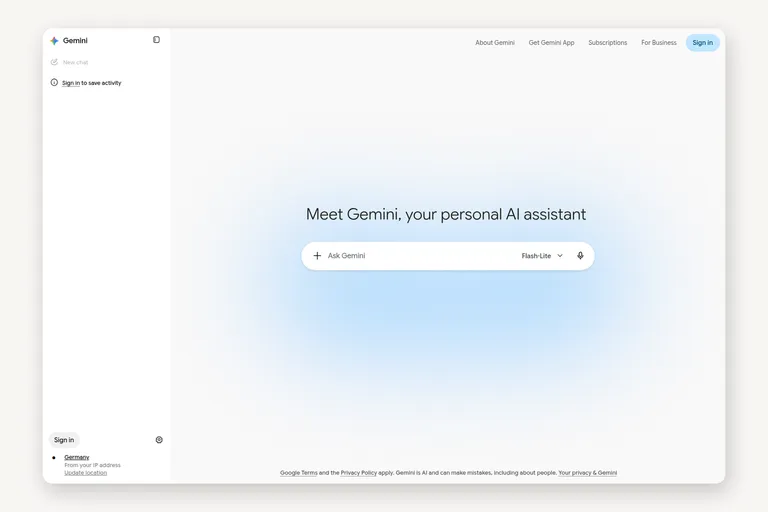
This is not a review of whether Google's models are good. They are. This is the map I wish someone had given me: what the surfaces are, who each one is for, what it costs, what it cannot do, and which ones I actually keep open. It is the Google branch of the ladder — tiers 2 to 4, one provider at a time.
The free tier, mapped
Everything below has a free version, and the free version is not a demo. That is the part people miss: Google's free tier is a better product than several things people pay for.
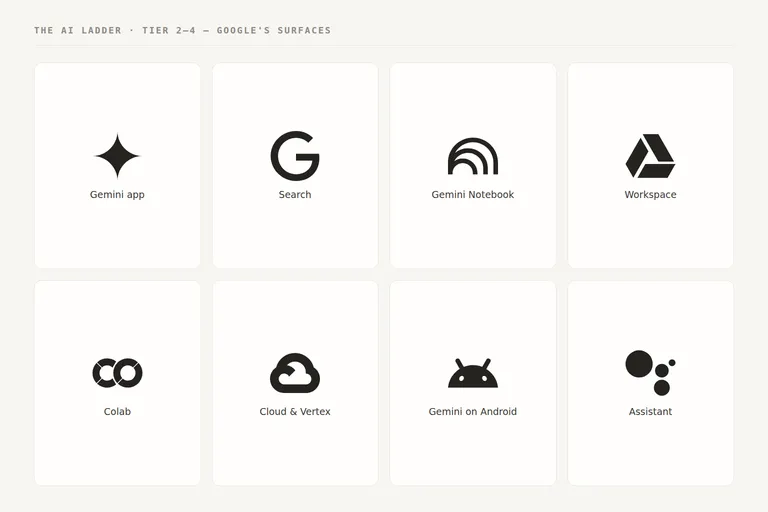
[ fig. Google's AI surfaces: one model, eight doors. ]
The Gemini app
The main door, at gemini.google.com, plus the app on Android and iPhone.
Who it is for: anyone who wants one assistant and does not care which model is behind it. Cost: free, with a paid tier above it. What it cannot do: much of anything without an account — history, files and longer conversations all want you signed in. What I use it for: quick questions where I want the answer plus a link, and voice on my phone when typing is inconvenient.
The thing worth knowing is that the free version and the paid version are not the same assistant. The paid one gets the better models and much higher limits; the free one drops to a lighter model when things get busy. If you tried Gemini once, found it thin, and never went back, that is probably what you met.
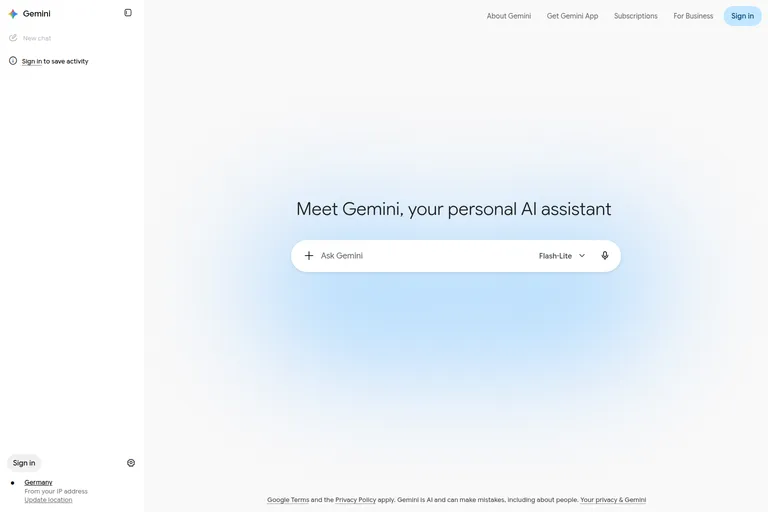
[ fig. Screenshot: gemini.google.com ]
Search, with the answer on top
Google put the assistant inside the search box. You will see it as an answer above the ordinary links, and in AI Mode you get a conversation instead of a list.
Who it is for: everyone, whether they want it or not. Cost: free. What it cannot do: stay out of your way — the answer is now between you and the ten blue links, and sometimes the links were the point. What I use it for: nothing deliberately. It is useful for factual questions and mildly annoying for everything else, and I have not found a setting that explains which of the two I will get.
Gemini Notebook — the one to actually try
You may know it as NotebookLM. Google renamed it, which is a theme in this piece.
It is a workspace where you upload your own documents — a PDF, a slide deck, a video, a set of notes — and then ask questions that are answered only from those sources, with the exact passage quoted underneath. There is also an audio overview that turns your material into a two-host conversation, which sounds like a gimmick until you use it to review something long while walking.
Who it is for: students, researchers, anyone facing a stack of documents that must actually be read. Cost: free tier, with a paid one. What it cannot do: invent for you. Its whole value is that it refuses to answer outside your sources, which is exactly the wrong tool when you want general knowledge. What I use it for: turning a long document into something I can argue with.
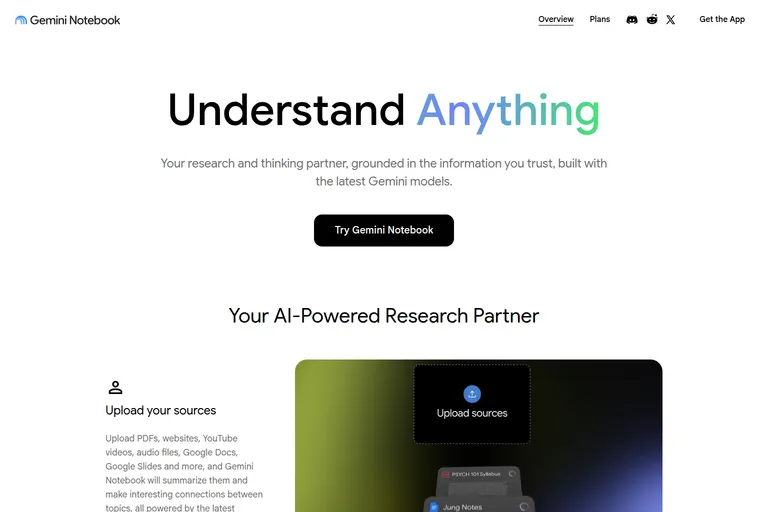
[ fig. Screenshot: notebooklm.google — NotebookLM, renamed Gemini Notebook. ]
The side panel inside Gmail and Docs
The one that saves the most time at work, and the least talked about. In Gmail and Docs there is a Gemini panel that summarises a thread, drafts a reply in your own tone, or writes the first version of a document using the material already in front of you.
Who it is for: anyone who lives in Google's office apps. Cost: it is part of a paid Workspace plan, and it is the main reason to consider one. What it cannot do: anything outside Google's apps. What I use it for: the reply I have already written in my head three times, and the summary of a thread that arrived while I was asleep.
What a paid plan actually adds
Two things: better models with higher limits, and access to the surfaces that are not free — the Workspace panel, deeper research, more storage, and in the higher tier, priority access when the service is busy.
Do not buy it for the chatbot. The free chatbot is fine. Buy it if you work inside Gmail and Docs every day, because that panel is where the money actually returns. And check the price when you do — Google renames and reprices these plans often enough that any number I write here would be wrong by the time you read it.
AI Studio: the free place to build
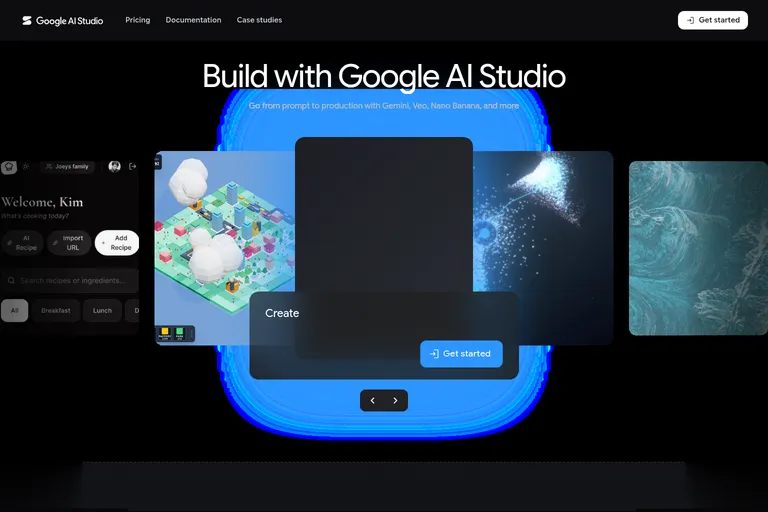
If you have ever wanted to try a model without a chat window around it, this is the one Google product I would send you to first. It is a workshop: you pick a model, write a prompt, give it a document or an image, and watch what comes back. When you like something, it hands you the API key and the code to call it yourself.
Who it is for: the curious, the technical, and anyone with a small automation in mind. Cost: free, with a generous monthly allowance, and a paid tier if you run out. What it cannot do: hold your hand — there is no assistant gently explaining what to change next. What I use it for: testing whether something is possible before I involve anything more complicated.
[ fig. Screenshot: aistudio.google.com ]
The developer shelf
Three more things exist, and you can safely ignore two of them.
Gemini CLI puts the same models in a terminal, in the same shape as the coding agents I wrote about in the first piece. It is the free way to see what an agent in a terminal feels like, and it is genuinely good.
Antigravity is Google's version of an agentic editor — and it has an unusual shape worth knowing about. Instead of a file tree with a chat panel bolted on, it opens as an agent manager: you describe work, and it runs it against a project or an isolated copy of the code.
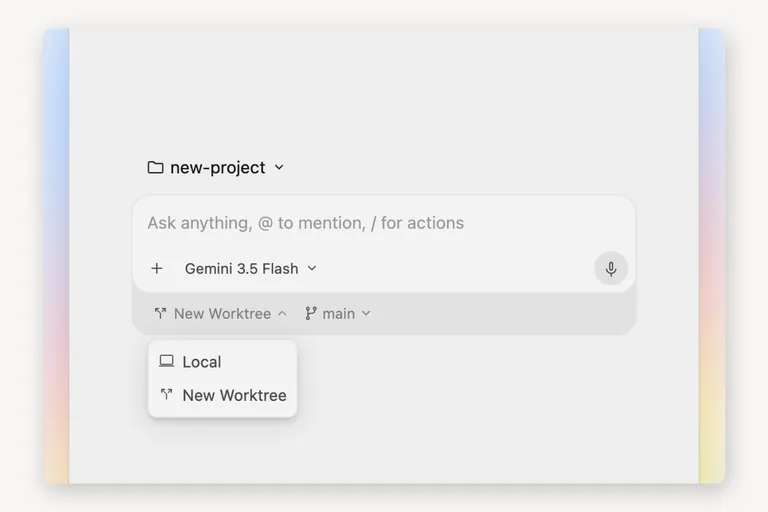
[ fig. Antigravity opens as an agent manager, not as a file tree. Screenshot: antigravity.google ]
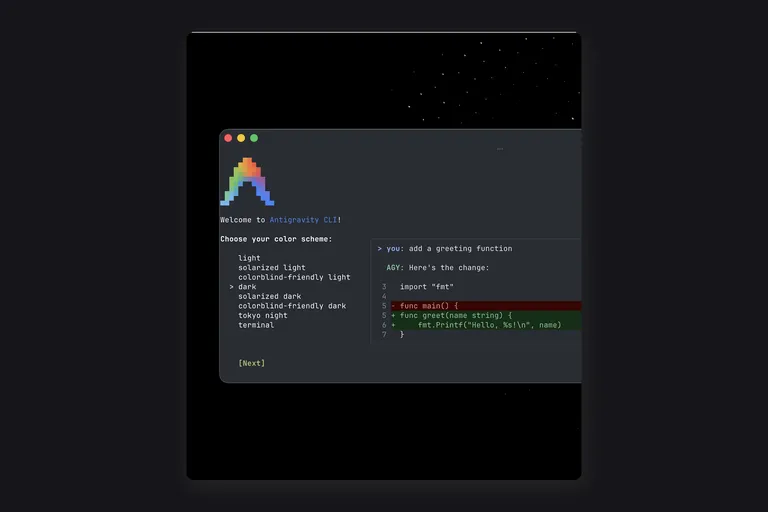
[ fig. Screenshot: antigravity.google — Antigravity CLI. ]
Vertex AI is the enterprise shelf: deployment, governance, quotas, procurement. It is a different article for a different reader, and if you are reading this one, it is not for you yet.
Where Google's stack disagrees with itself
Three frictions, stated plainly, because they are the reason people give up on this stack.
The names move. Bard became Gemini. NotebookLM became Gemini Notebook. Assistant is being folded into Gemini. If you cannot find a feature you read about, it was probably renamed, not removed.
The assistants overlap. The same question can be asked of three different Gemini-branded things and you will not get the same answer, or the same features by region and plan.
The best parts hide behind an account. The free tier is generous, but the surfaces that save real time — the side panel, the higher limits — assume you are signed in, paying, and in a supported country.
None of this is fatal. It is just why the answer to "how do I use Google's AI" is not one link.
What I would bookmark
1. Gemini Notebook — the most useful thing Google makes, and the least understood.
2. The Gemini app, signed in, on the paid tier if you work in Workspace.
3. AI Studio — the workshop, for testing what is possible.
4. Gemini CLI — the free, honest way to try an agent in a terminal.
5. The Workspace side panel — if your day is email and documents, this is the whole return on the subscription.
And skip, for now: the search answer feature. It is not a tool you can hold; it is a feature that happens to you.
The honest summary
Google's problem is not capability. It is that the company ships the same idea five times under four names and then lets the search box decide what you see. Underneath that mess is the best free tier in the industry — one document-grounded research tool that nothing else quite matches, a workshop for people who want to build, and a side panel that quietly removes an hour of work from a normal week.
Start with Gemini Notebook. It is the one that changes what you think the stack is for.
Everything in this series is filed under The AI ladder. Next: ChatGPT in depth, then Claude end to end.
More in the series
- From a chat box to a second brain: choosing your approach to AI
- Google's stack: what's actually in it reading
- ChatGPT like a pro
- Claude, end to end
- Desktop apps and editors
- Command Line Interface agents
- Running a model on your own machine
- The second brain that reads itself
- Automation: agents that run without you
- What's worth paying for