From a chat box to a second brain: choosing your approach to AI
Most people I know use AI the way they used a search engine in 2009: they open a box, type a question, read the answer, close the tab. It works. It is honestly better than the search engine. And it is about five percent of what is now available to them.
The question I get asked most is not "which AI should I use". It is "how do you actually use it". Here is the honest answer, in five tiers. Each tier costs more than the one below it — in money, in setup, or in attention. None of them is wrong, and most people should stop at the third.
The map, before the detail:
Tier 1 — Asking a chatbot instead of googling.
Tier 2 — The same chatbot, but it knows you and your files.
Tier 3 — Apps on your computer that can see your work.
Tier 4 — Agents that can actually do things for you.
Tier 5 — Your own system: notes, automations, and an assistant that remembers.
Tier 1 — Ask something
This is the Google replacement, and it is where everybody starts. A free website or phone app, a box, and a conversation instead of ten blue links.
The tools: ChatGPT, Claude, Gemini, Copilot, Grok, Perplexity, DeepSeek, Mistral, and Meta's assistant inside WhatsApp. They are more alike than their advertising suggests. The differences that actually matter to a beginner:
Claude is the best of them at long, careful answers, and the least likely to flatter you.
Gemini is strongest on anything current, and it is wired into the rest of Google's products.
ChatGPT has the most features around the edges — images, voice, files — and the most third-party support.
Perplexity shows its sources, which is what you want when you actually need to check something.
DeepSeek and Mistral matter later, if you ever want the cheaper, more open path.
How to start: pick one, use it for a week for everything you would have googled, and notice the day you start typing full sentences instead of keywords. That day is the whole point of the tier.
[ fig. Tier 1: the assistants that live in a browser tab. ]
What it cannot do: it does not know you. It has no idea what you are working on, what you tried yesterday, or what your limits are. Ask it something personal and you get a confident, generic answer — the same answer it gave ten thousand other people this morning.
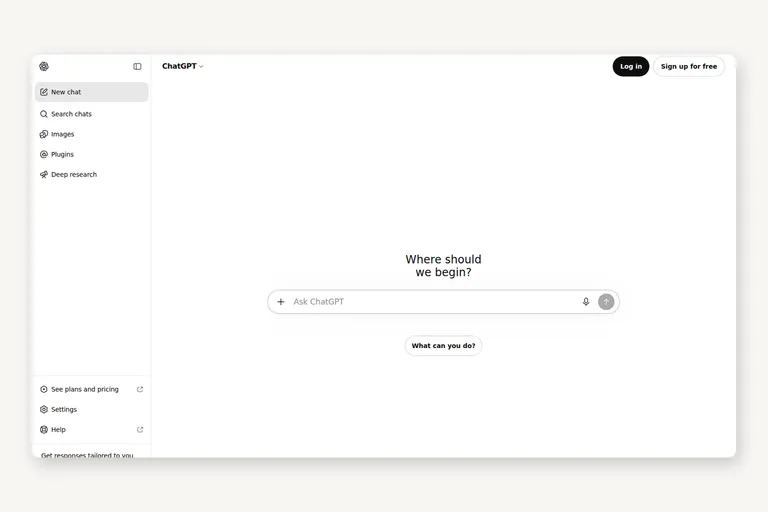
[ fig. Screenshot: chatgpt.com ]
Tier 2 — Ask something that knows you
Same apps, different setting. This is where the tool stops being a search engine and starts being a colleague who has read your notes.
What changes: it remembers what you told it between conversations, you can keep a project that holds its own context and files, you can write down how you want to be talked to, you can hand it a document or a photo, talk to it while you walk, and let it read the web for you while you make coffee. NotebookLM is the one worth singling out here: it only answers from the documents you gave it, and it points at the sentence it used.
The work is not technical. It is the ten minutes you spend writing down who you are and what you are working on, and the habit of keeping one project per ongoing thing instead of one endless scroll of unrelated chats.
How to start: paste the last thing you wrote into a project and ask what is weak about it. Then write one paragraph describing yourself and your work, and save that as your standing instructions. That paragraph is the cheapest upgrade on this whole list.
What it still cannot do: touch anything you own. It can read what you paste. It cannot open the file.
Tier 3 — Apps that can see your work
Now the model stops waiting for you to bring it things. Two kinds of app, for two different problems.
The first kind is the desktop editor — Cursor, Windsurf, Zed, JetBrains with an assistant, VS Code with Copilot, and Google's Antigravity, which is built around an assistant panel rather than a file tree. The change is not "better autocomplete". It is that the assistant can read your project, propose a change across five files, and run the tests. Cursor is the one I would hand to a beginner with real work to do; the plan step and the review step are readable without a manual.
[ fig. Tier 3: editors that build agents into the file tree. ]
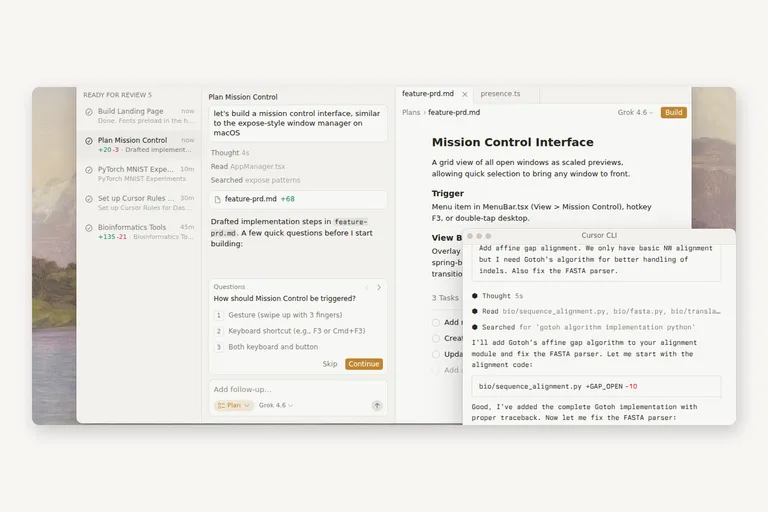
[ fig. Screenshot: cursor.com ]
The second kind is running the model on your own machine. It is worth knowing this exists, because it changes who gets to see your data, and it is the only option when the answer cannot leave your computer. The short version: it is slower, it wants a decent graphics card, and nothing goes over the internet. I will write about it properly later in this series — for now, just file it away as the private option.
[ fig. Running it yourself: the private option, covered later in this series. ]
How to start: install one desktop app. If your work is code, let it read one project and ask it to explain a file. If your work is documents or anything confidential, this is the tier where the private option begins to matter.
What it cannot do: act while you are asleep. Everything so far waits for a human to press a button, and the human is still you.
Tier 4 — Agents that can act
The terminal is where this stops being a chat window. An assistant running there can see your files, run commands, and change things. That is the difference between advice and work.
Claude Code is the one to try first: you point it at a folder, describe what you want, and it reads, edits and runs as it goes — telling you what it is doing and asking before anything destructive. Codex from OpenAI does the same job; Gemini CLI brings Google's models to the same place; Antigravity CLI is Google's version of the same idea; Cursor ships one alongside its editor.
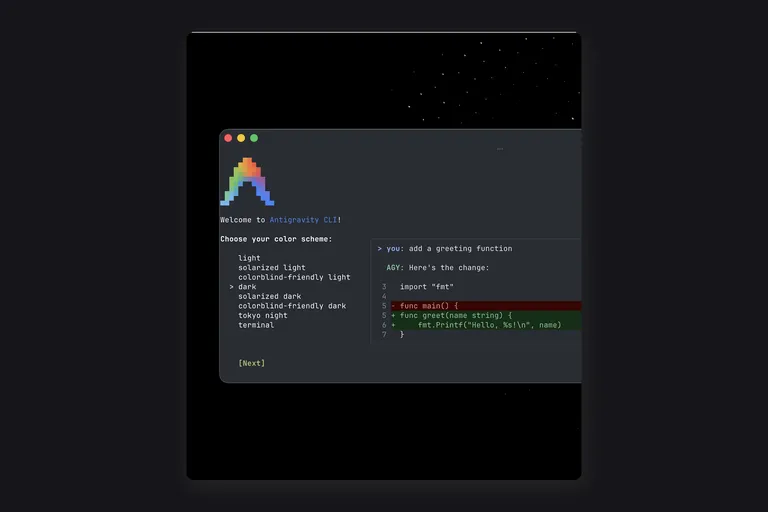
[ fig. Screenshot: antigravity.google — Antigravity CLI. ]
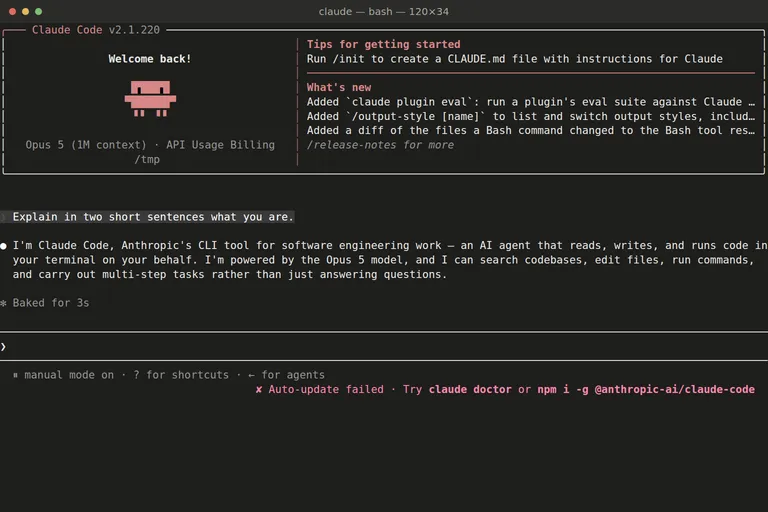
[ fig. Claude Code in a terminal, captured while writing this piece. ]
Two things separate a toy from a tool here, and both are about the rules around the model rather than the model itself: what it is allowed to touch without asking you, and how it is connected to things outside the folder — your notes, your calendar, your database. That second part is a whole article on its own later in this series.
The other thing that makes or breaks it is reading what it changed. This is the tier where a careless request can delete something. Every tool here asks permission by default, and my honest advice is to leave it that way for a month. Speed arrives on its own; trust should be earned slowly, in the other direction.
How to start: install Claude Code in a small project. Ask it to explain a file it did not write. Then ask it to fix one small thing and read every line it changed before you accept it.
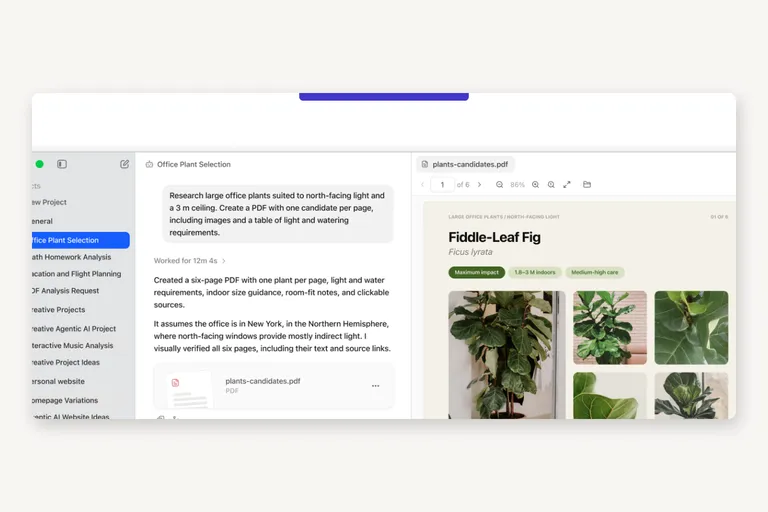
[ fig. Screenshot: lmstudio.ai ]
Tier 5 — Your own system
This is the top of the ladder and it is not something you buy. It is something you assemble, out of three parts, plus a cost nobody advertises.
A place for your notes. One app that collects everything — Obsidian for plain files, Notion for structure — and one habit: every link, idea and decision goes into it. The app was never the hard part. The habit is.
Automations. Work that happens without you: a schedule that files your expenses, a summary waiting for you in the morning, a form that turns into a record. Some people draw these in n8n, Make or Zapier; some people write a small script and a timer. I have both, and neither is clever. They just removed a recurring chore from my life permanently.
[ fig. Tier 5: where notes, records and schedules meet a model. ]
An assistant that remembers. The last piece is teaching your tools your own procedures instead of repeating yourself every Monday — what you want done, in what order, with which exceptions. This is the part that makes everything above add up, and the part that quietly rots if you ignore it.
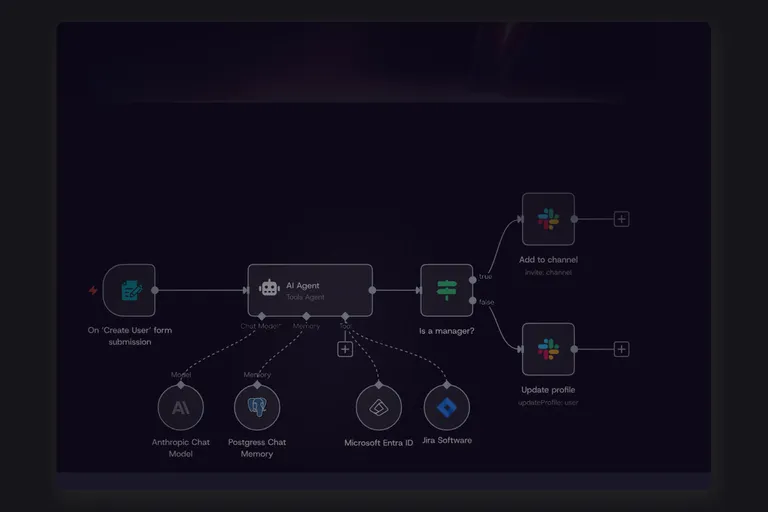
[ fig. Screenshot: n8n.io ]
And the price. Money, in subscriptions that add up faster than you expect. Time, honestly measured in weekends rather than evenings. And maintenance — the bill nobody mentions, which is why so many of these setups end as expensive ruins. A system that needs you every week is a second job. Build only what you would notice breaking.
So where do you actually live?
Not on the top tier. Ranked by what you want, this is the honest mapping:
Answers to questions — Tier 1. It is free, it is instant, and it is more than most people ever use.
Better work on things you already care about — Tier 2. A project, your instructions, the documents you already have.
Work inside a real project, or on confidential files — Tier 3. A desktop editor, or the private option.
Repetitive work with a clear finish line — Tier 4, an agent in the terminal, with you reading what it changed.
Recurring work you want to stop thinking about — Tier 5, and only then.
Notice that the tiers are paid for with different currencies. The first two cost attention. The third costs an install. The fourth costs trust. The fifth costs maintenance. Most people I know are overpaying somewhere and underpaid everywhere else.
What I would tell myself two years ago
The tier is not the point. The habit is.
Tier 1 teaches you to ask in sentences. Tier 2 teaches you to keep context instead of repeating yourself. Tier 3 teaches you to let the assistant read your real material. Tier 4 teaches you to hand over a whole task and check the result. Every one of those is a change in how you work, and you can start it this afternoon with a free chat window.
What does not work is buying the top tier first. I have watched people subscribe to four tools in a week and use none of them by the third week, because they started with the tool instead of the problem. The hardware was never the constraint.
So: pick the tier that matches a problem you have this month. Do the one small thing that moves you up it. Then leave it alone until the tier above starts to itch.
Everything in this series is filed under The AI ladder. The next pieces take one tier at a time: Google's stack, ChatGPT in depth, Claude end to end, the desktop editors, agent tools, running models on your own machine, the second brain, and automation.
More in the series
- From a chat box to a second brain: choosing your approach to AI reading
- Google's stack: what's actually in it
- ChatGPT like a pro
- Claude, end to end
- Desktop apps and editors
- Command Line Interface agents
- Running a model on your own machine
- The second brain that reads itself
- Automation: agents that run without you
- What's worth paying for